
Phone app launcher
Jenny can open the other apps installed on your phone, from a drawer. It is where you launch things and, with a long press on a row, where you manage them too. This page covers it, and is honest about where it still falls short.
The drawer: where you launch things
Section titled “The drawer: where you launch things”There is one drawer, and two ways in, one per shell:
- In the home, the drawer is the Apps page — by default the first of the four fixed pages (you can reorder them), so it is a swipe away from the conversation, and it is a page of its own rather than something laid over it.
- In the workshop, tap the grid button at the left of the Console’s message box and a sheet slides up over the chat. The dock has no grid icon: its four items are Console, Brain, Hands and Memory.
Either way it is a search field with a list under it — not a grid of icons — and it holds the two kinds of thing that can actually be launched, mixed together:
- your installed Android apps,
- your Jenny Apps (see Mini-apps).
Skills are not in the drawer. They are not launchable — you don’t open a skill, Jenny uses one — so they live in the workshop’s Hands drawer instead (see Skills).
Each row shows a name and, under it, a second line: the description for a Jenny App, the package name for an Android app. At the right, a label says which of the two it is: Jenny App or Android App. If a Jenny App is broken — an invalid manifest, for instance — its icon becomes a warning triangle and the problem takes the second line instead, in red, so you can see what’s wrong without opening anything.
The Android apps are the ones that have a launcher icon of their own — anything Android’s MAIN/LAUNCHER intent filter would resolve to, the same set you’d see on a normal home screen. Background services and other UI-less packages never appear.
Using it
Section titled “Using it”- Type to filter. The field doesn’t grab focus when the sheet opens (that would raise the software keyboard and eat the sheet), but the first printable key you press puts the cursor there and keeps the character. Search matches the name and the second line, so
com.androidfinds an app by package id andrecipefinds a Jenny App whose description mentions recipes. Accents and capitals don’t matter, and several words are combined with AND. - Tap a row to open it.
- Long-press a row for its card — see The card below.
- ↑ / ↓ move the highlighted row without moving the cursor out of the search field, so you can keep typing. Enter opens the highlighted row; Shift+Enter opens its card instead, the same one a long press gives you.
- Back clears the search first. On the second press it takes you back to the chat in the home, and closes the sheet in the workshop, where Esc on a physical keyboard does the same. With a card open, Back closes the card first.
- In the workshop’s sheet, drag the handle or the title row down to dismiss it. Dragging inside the list scrolls the list and never moves the sheet.
- On a phone with a scroll wheel, the wheel is wired to move the highlighted row as well — though that has only been exercised with synthetic wheel events so far, not on a real wheel.
With an empty search field the list is titled Most used and is ordered by how often you open things, then by how recently. That ranking is stored on the device only; clearing the app’s data resets it, and it rebuilds itself in a few days of use.
Opening an Android app closes the drawer, because the app takes over the screen. Opening a Jenny App does not: the mini-app appears over the drawer, and Back brings you back to it with your search intact.
Where it can’t go
Section titled “Where it can’t go”In the workshop, the sheet’s list deliberately stops short of the very bottom of the screen. On a phone in gesture navigation, the last strip above the screen edge belongs to the system’s home gesture, and an app cannot claim it back. Since Jenny is often the device’s own home screen, a swipe up that started in that strip would not just close the drawer — it would tear down every overlay in the UI. So the list keeps clear of it. The size of that strip is read from Android at runtime, so it is right for your phone and shrinks to nothing when you switch to three-button navigation.
The card: where you manage things
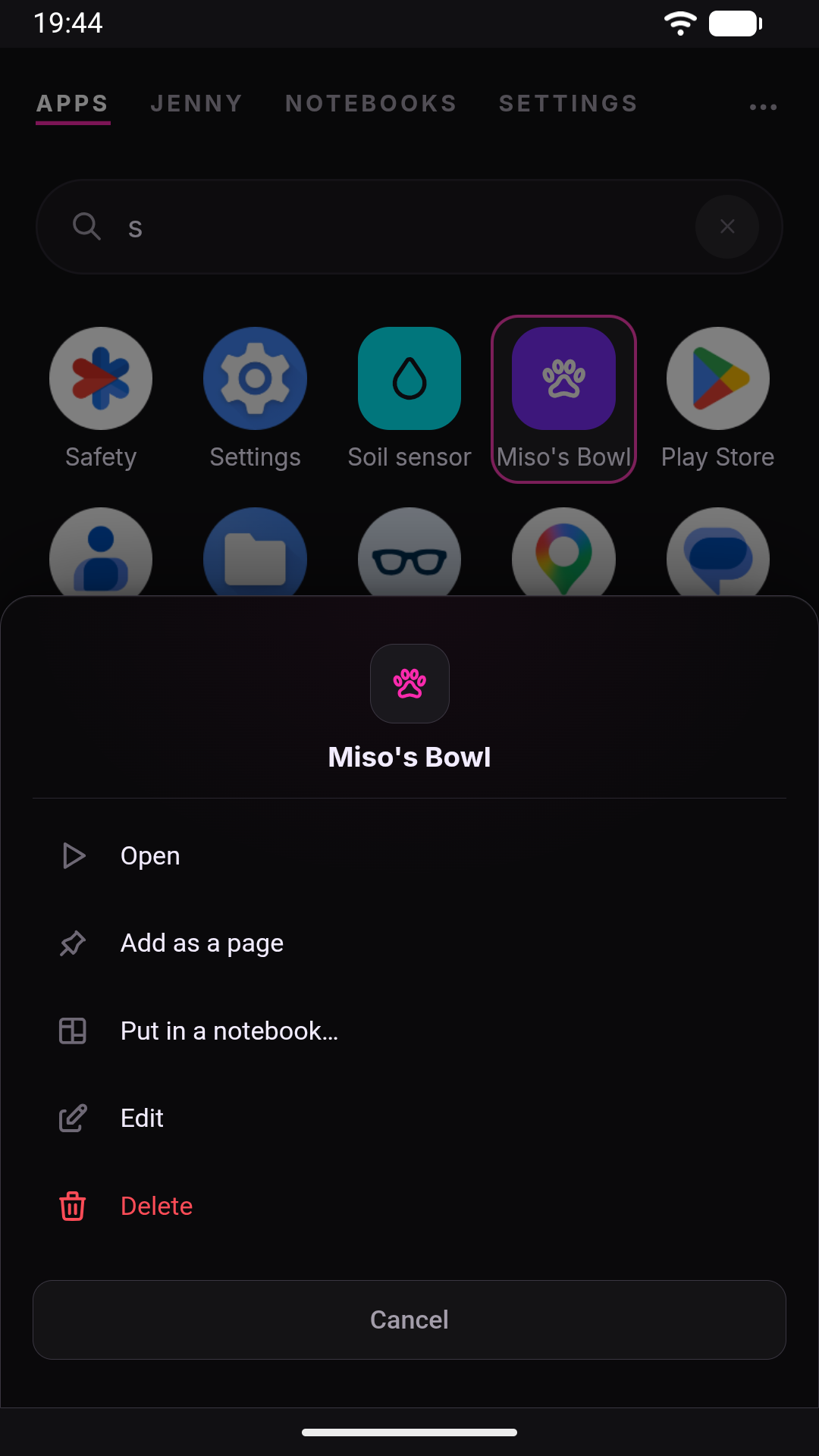
Section titled “The card: where you manage things”A long press on a row (or Shift+Enter on the highlighted one) opens a card over the drawer, with the app’s name and icon and a short list of actions. Which actions depends on the kind of row.
For an Android app:
| Action | What it does |
|---|---|
| Open | Same as tapping the row — launches the app. |
| App info | Opens Android’s own “App info” system screen for that app (permissions, storage, force-stop, etc.). |
| Uninstall | Only shown for non-system apps. Goes straight to Android’s own uninstall dialog — Jenny adds no confirmation of her own, since Android’s is always there and cannot be skipped. |
System apps (anything flagged as a system or updated-system app by Android) never show “Uninstall” — only “Open” and “App info”.
Uninstalling and viewing app info both delegate to real Android system screens — Jenny is not the one uninstalling anything, and cannot know whether you actually went through with it in Android’s own dialog. The endpoint behind these two actions only reports whether it managed to open the system screen. What Jenny does instead is reread the list of apps when you come back: if the app is gone, a message says so (“… uninstalled”) and its row disappears. That works for an uninstall started from “App info” too.
For a Jenny App:
| Action | What it does |
|---|---|
| Open | Same as tapping the row. |
| Add as a page / Remove from pages | Home only. Puts the mini-app in the home’s row of pages, or takes it out again. Greyed out, with the reason, when the app opens outside Jenny (an external-view app), when it is broken, or when the eight custom pages are already taken. See Tour of the WebUI. |
| Edit | Not an editor: it puts a request to change the app into the chat, for Jenny to work on. |
| Delete | Asks for confirmation, then deletes the mini-app. |
There used to be an Apps tab for this, with a grid of every app, and a Hide action that took an app out of Jenny without uninstalling it. Both are gone: the card replaced the tab, and Hide went with it — apps you had hidden before show up in the drawer again.
When something goes wrong
Section titled “When something goes wrong”- A launch that fails says so. If tapping an app doesn’t open it — it was uninstalled or disabled since the list was loaded, or Android refuses for some other reason — you get an error message naming the app, and the drawer stays open so you can try something else. (It used to do nothing at all, which was indistinguishable from a tap that didn’t register.)
- An empty list and a broken one are different screens. The drawer distinguishes four states, and each one asks for something different: still loading, “Could not read the list of apps” when a fetch or the native bridge failed, “No app or Jenny App to open” when there genuinely is nothing, and “No results for …” when your search matched nothing. If only part of the list failed — the usual case, since the phone’s app list comes from a different place than mini-apps — a strip appears above the list saying so, with a Retry button. Reopening the drawer retries a failed list too.
What it still doesn’t do well
Section titled “What it still doesn’t do well”- A disabled app leaves a stale row. Installing or uninstalling an app updates Jenny’s list on its own, because Android broadcasts those. Disabling one doesn’t broadcast the same thing, so the row stays until the list is reloaded — tapping it gets you the error message above rather than the app.
- In the workshop’s sheet, the incomplete-list strip disappears when the software keyboard is up on a short screen. There is only room for so much, and while you are typing the results matter more. It comes back when the keyboard goes down.
- The ranking is frequency-first. An app you opened fifty times last month and never since keeps its place near the top. Whether that needs a recency decay is an open question that only real use can answer.
See also
Section titled “See also”- Tour of the WebUI — overall navigation, including the home’s Apps page.
- Mini-apps — the Jenny Apps the drawer opens alongside your phone’s apps.
- Skills — what skills are, and why they aren’t in the drawer.