Notebook board
A notebook opens on its board: a few cards pinned to one screen, one card per subject the notebook keeps coming back to. Each card opens a drawer, a short summary of that subject written from the notebook’s wiki pages, with links to the pages themselves. The wiki stays the source of truth; the board is the face of it, and the way in.
The board replaced the notebook’s page list and its graph map. Both are gone from the home, and so is the file that remembered where you had dragged the map’s nodes (workspace/.jenny/map-layout.json, removed at the next start). Every page is still there and still reachable, from a drawer or from search.
Getting there
Section titled “Getting there”Tap a notebook on the Notebooks page and it opens on its board, under the header row ← Notebooks › name. A notebook you pinned as a page of its own opens its board as soon as you land on that page. The notebook’s chat is behind Jenny: tap her and its conversation comes up full screen over the board, which stays visible beneath; tap her again, or press Back, to return to the board.
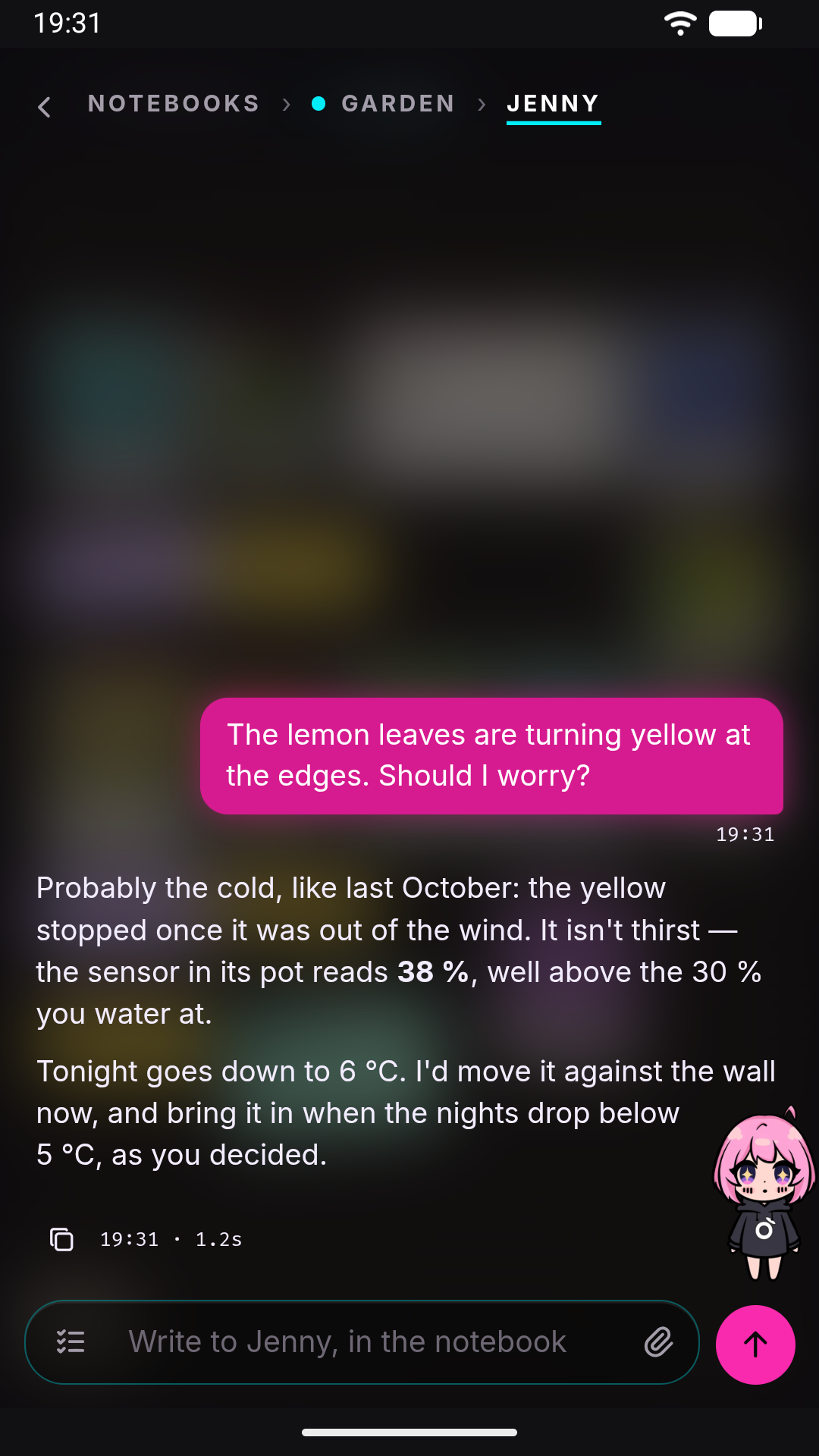
Back from the board returns to the notebook’s chat. Back from a drawer returns to the board, and back from a page returns to the drawer you opened it from — or to the board, if you opened it from search.
What is on the board
Section titled “What is on the board”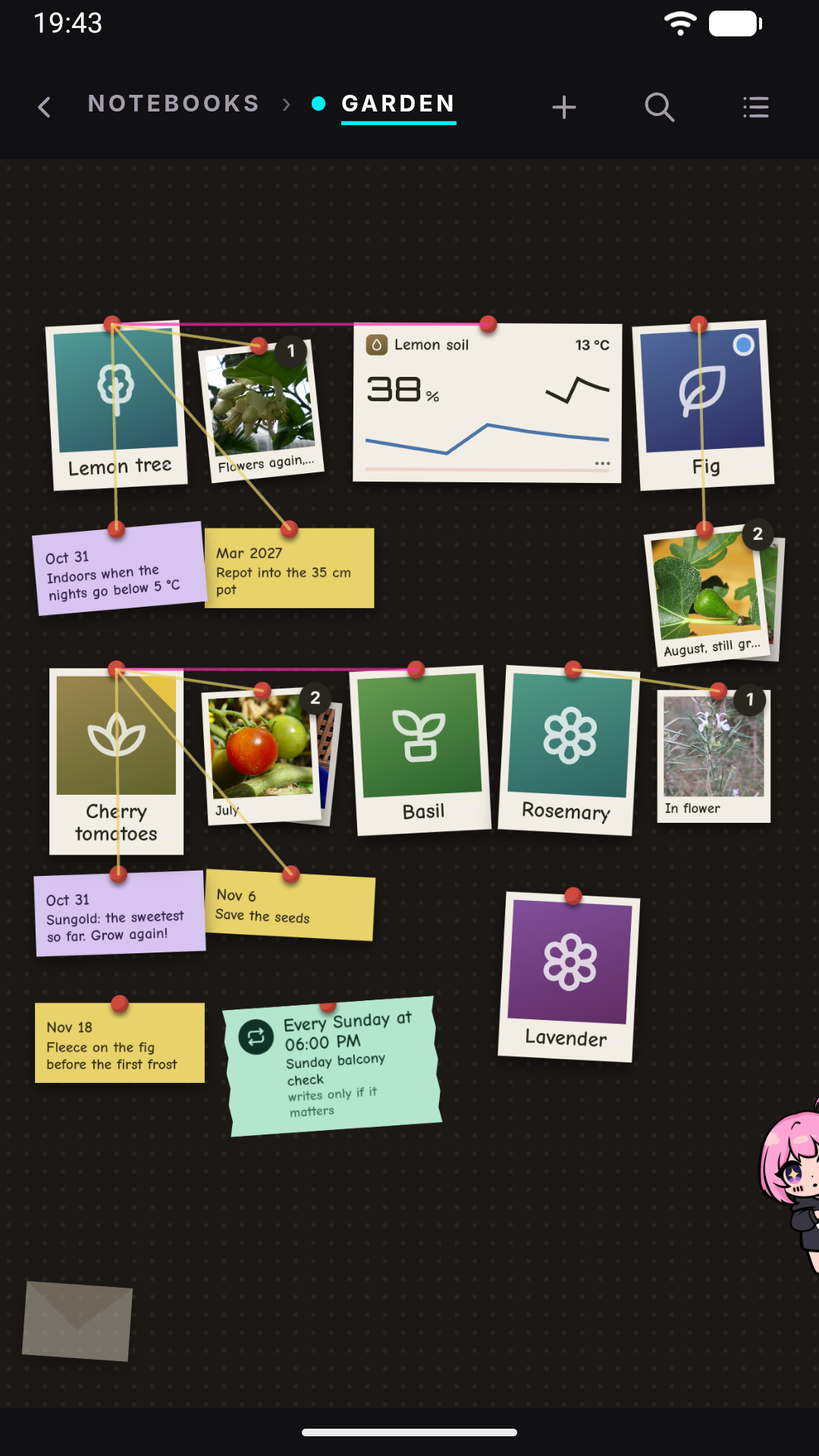
| Thing | What it is |
|---|---|
| Cards | Polaroids, one per subject — Maple, Monstera — with an icon and the subject’s name. Tap one to open its drawer. A card can also be an app (Portfolio, WaterBot): its live value takes the place of the photo, and tapping it opens the app — see App cards. |
| Sticky notes | One yellow note per card that has open reminders: its next three, each with its date, and +N more for the rest. A thread runs from the note’s pin to its card’s pin. Tapping it opens that card’s drawer, where the care calendar lists them all. Reminders that belong to the whole notebook gather on one more yellow note, free on the cork and without a thread; tapping it opens their list in a sheet, with + Reminder. A cron that fires once (remind me tomorrow at 9) is a date too: it is a line of the note of its card, or of the free one, with its time. |
| Labels | One mint label per card that has automations — notebook crons that repeat: one row each, with how often in big (Every Sunday at 18:30), its name and its last run, and +N more after three. Tied to its card by a mint thread, beside the card’s sticky note: two branches from the same card. The automations of the whole notebook are on one free label, without a thread. Tapping a card’s label opens its drawer; tapping the free one opens its automations in a sheet, with Pause, Change and Remove. |
| Lilac notes | One lilac note per card that has your notes, gathered: the two newest, each with its date, and +N notes for the rest; with more than one, the edge of a second sheet shows under it. Tied to its card by a thread, like the yellow one. Tapping it opens all the card’s notes in a sheet, right there on the board. |
| Galleries | A card’s photos: the three newest fanned out as small polaroids, the front one with its note, and how many there are. Tied to its card by a thread. Tapping it opens the card’s gallery in a sheet, right there on the board. |
| Threads | Thin red lines between two cards that a page ties together. See Threads. |
| The envelope | Bottom left: Jenny’s proposals for changing the board’s shape, with a count. See The envelope. |
| Since you last looked · N new | A row at the top, shown only when something changed since you last opened the board, or proposals are waiting. See Since you last looked. |
The board is a wall you move around in every direction, with its origin in the middle: the screen you see when you open it is the origin, and there is room to the left, right, above and below. One finger on the background moves the wall, two fingers zoom and move it like a map — a pinch can start with a finger on a card, which then stays where it was — a double tap on the background goes back to the origin at normal size; on a computer the wheel moves it and Ctrl + wheel zooms. Drag a card near the edge of the screen and the wall moves with it. A card you accept from the envelope is placed in the free spot nearest to the middle of what you are looking at, and a card’s sticky note next to it, wherever that card is. It holds at most 40 items, cards and yellow sticky notes together — one note per card, however many reminders it holds, plus the free note of the whole notebook — and up to 16 threads. Lilac notes, galleries and labels do not count: they come from a card’s drawer or from something you asked Jenny, and a photo or a cron should never be what fills the board. Positions are stored as percentages of the screen, from −1,000 to 1,000 (the screen to the right starts at 100, the one to the left at −100), so the same board fits a square screen and a tall one.
Three buttons in the header work on the board: + asks what to add — a new card (see Your cards), a reminder for the whole notebook, or an automation, which opens the notebook’s chat with the request started for Jenny — the lens opens search, and the list icon swaps the board for a plain list of the same cards — name, next reminder, how many notes and photos, signal, and the envelope as its last row — for anyone who prefers a list, and for screen readers.
One signal per card
Section titled “One signal per card”A card shows at most one signal, so that when something lights up it means something. In order of priority:
| Signal | Meaning |
|---|---|
| Red corner — problem | An app on this card (in its drawer, or the card itself) is in alarm, or its data has stopped arriving. |
| Yellow corner — coming up | The card’s nearest dated reminder is due within 14 days, or is overdue and still open. |
| Blue dot — new | The drawer was rewritten since you last opened it. |
No signal means nothing needs you.
Gestures
Section titled “Gestures”- Tap a card, its yellow sticky note or its label to open the drawer; a lilac note, a gallery, or the free note and label of the whole notebook open their sheet on the board.
- Drag a card, a sticky note, a label or a gallery to move it. Its pin turns red: a red pin marks something you placed, a grey one something placed by the code when it was created. Jenny never moves a card or a note on her own — not the ones you placed, not the ones she placed; she does it when you ask her to (see Asking Jenny). A card’s position is chosen once, when it is created: in the free spot nearest to where it was asked for — the middle of what you are looking at, or the point you held.
- Press and hold a card (about half a second) to lift it: its threads turn bold and show their labels, the cards at the other end lift, the rest of the board dims, and a bar rises at the bottom with Rename and Remove from the board. Tap the background, the × on the bar or Back to put everything back.
- Press and hold the empty wall to make a new card right there, under your finger.
Your cards
Section titled “Your cards”The board’s shape is yours, and you can change it directly — or ask Jenny — not only by answering the envelope:
- New card: the + in the header, or a press and hold on the empty wall. You give it a name; it is born empty, in the free spot nearest to where you asked, and fills as the gardener attaches pages to it, as Jenny puts pages in it when you ask, or as you add sections.
- Rename: from the bar of a held card, or at the bottom of its drawer. The name becomes yours, and Jenny no longer rewrites it.
- Remove from the board: from the same two places. There is no question first: the card goes, and Undo appears for a few seconds. Undo puts it back where it was, with its threads. Meanwhile what the card did by itself stops — its notebook crons pause, its reminders stay quiet — and resumes with the undo. A removed card can be put back for 7 days (the last 5 removed); after that it is gone for good, together with its crons. The wiki is never touched: its pages stay, and search finds them. Accepting Put it away from the envelope removes a card the same way, with the same undo.
Asking Jenny
Section titled “Asking Jenny”In the notebook’s chat you can ask for any change to the notebook, in your own words: split this card into one per plant, move the vase pages to the Ginkgo card, tie the fig to the terrace project, remind me to divide the cherry in November, put the old card away, yes to the proposal in the envelope. Jenny hands the job to a helper of hers, the notebook editor, which changes pages, the map and the board, and rewrites the drawer of every card whose pages it moved. The board under the chat redraws itself when it is done.
What the editor changes counts as yours, exactly as if you had done it by hand: the gardener cannot undo it. When a request could mean two things — or is only a question, could this card be split? — Jenny asks once before doing anything.
App cards
Section titled “App cards”A Jenny App goes on the board as a card of its own. Polaroids are the things; apps are strips: paper two polaroids wide, with the app’s icon, its name and one datum on the right (4 to buy, today +0.8 % — or, when the app names none, its state: at 14:02, stopped · 2 d ago, in alarm), and below a few blocks the app chose: a big value with its trend, a week’s chart, a list you can tick, a row of buttons, this week, this month, a progress bar, the latest photos…
Strips come in four sizes — S, M, L, XL: an M is as tall as a polaroid, an XL as two. The size comes from the app, not from its data, so the board never jumps when the numbers change; a list that does not fit ends with and N more. When the data stops arriving the strip greys out and the datum on the right says how old it is — an old value never looks fresh — and an alarm turns the value and the corner red. An app with no data at all stays a polaroid with its icon.
Tapping a strip opens the app: its screen; an app with no screen opens the card’s drawer, which starts from the same strip. Up close — once the board is zoomed in enough for a finger — the controls inside a strip work right there: tick the shopping list, press Water now, flip a switch. Farther away they sleep, and any tap opens the app, so a tap meant for the strip never fires a button by mistake.
An app never goes inside another card’s drawer, and a subject card always keeps its own photo. When an app belongs with a subject — Portfolio with ETF — the two cards are tied by a thread. That is what Next to «ETF» does when you put an app in a notebook from the App page, and App → Or put one of your apps next to it… from a drawer.
Threads
Section titled “Threads”A thread is always visible as a thin line with no words on it; its label — the reason two cards are tied, in a few words, such as seeds taken from it — appears when you press and hold either card. A drawer also lists its card’s threads, and tapping one opens the card at the other end; the × beside it removes the thread, and Jenny will not propose that thread again. A board has at most 16 threads: more than that would be the graph the board replaced. On her own, Jenny adds threads only by proposing them; ask her in the chat and she ties two cards for you.
The drawer
Section titled “The drawer”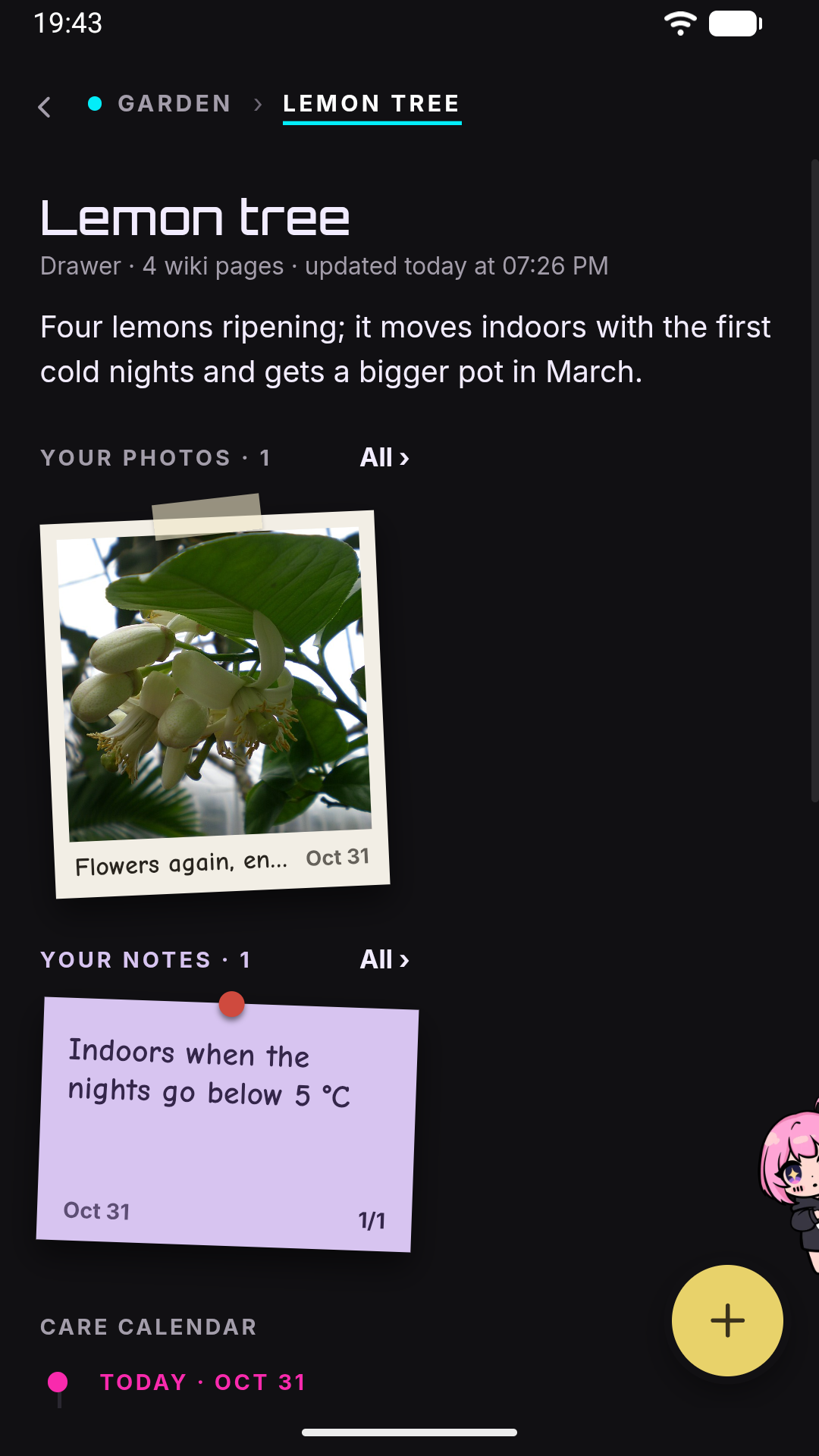
Tap a card and its drawer opens. From the top:
- The title, the number of wiki pages the drawer covers and when it was last updated.
- The brief: one or two sentences on the state of this subject now. Under it, in a row, your photos and your notes, if the card has any: a small deck of polaroids on the left (see Photo) and one of lilac sticky notes on the right (see Note); on a narrow screen one goes under the other.
- A warning when a mini-app section in this drawer is in alarm or stalled, saying that the data comes from the app, not from the wiki.
- The care calendar: the card’s open reminders, each shown once, on a timeline — the overdue ones first, in red, then Today, then one group per month, then the ones that wait for an app’s value (When it happens). The nearest is a yellow card with a Done button; every reminder has a ⋯ with Edit, Done and Remove. The brief and the sections do not repeat the dates: the calendar is where they are.
- The sections. Every notebook has a skeleton, the list of sections every drawer has, in the same order on every card — for a plant notebook, Pot and repotting, Water, Feeding, Light, History. Each section is two short sentences, with chips that open the pages it was written from. Sections are folded: a row with the title and the first line; tap it to read the rest, the pages and Correct. A section the pages have nothing on is left out rather than filled with “no data”. A blue dot beside a section’s title means its text changed since you last opened the drawer.
- Your sections, if you added any (see below).
- Threads, if the card has any.
- The pages (N): a collapsed list of every page in this drawer.
A drawer that has not been written yet says so, and is written on the next gardener pass.
Correcting a section
Section titled “Correcting a section”The drawer is written by Jenny from the wiki, so you do not edit it directly: you correct it, and the correction goes to the page it came from.
- Open a section and tap Correct under it. Its text becomes a text field, and a line under it names the page the correction will go to — the section’s first source page.
- Write what it should say, and tap Send to Jenny.
- The correction is filed as a report on that page — the same kind of audit file as Report in the reader, marked as coming from the board. Until it is dealt with, the section shows your text in italics with a paperclip: your correction, I’m working it in.
- On the next board pass the gardener applies the correction to the wiki page, closes the report, and rewrites the drawer from the corrected page. The section then shows ✓ Applied to the wiki until you next open the drawer.
Unlike Report, a correction does not take you to the chat: it is handled between conversations, by the gardener.
Adding a section
Section titled “Adding a section”The yellow + at the bottom right — the same corner as the + of the Notebooks page — stays on screen while the drawer scrolls. It opens a fan of six kinds: reminder, note, app, cron, photo and other; tap outside it, the × or Back to close it. They are yours: Jenny does not add, change or remove them on her own — only when you ask her in the chat. Apps are sections that can be moved up or removed; removing one never changes the wiki. A card’s crons are not sections: they are listed under Automations, from the jobs themselves. Notes and photos are not sections: they are the two decks under the brief. An app or a cron always comes that way: Jenny makes it because you asked for it.
The rule behind apps and crons: everything a notebook does by itself is on its board, where you can see it. An app’s reader reads a value for free; a cron is a job Jenny does on a schedule. Both carry the same signature — how often, the last run, the next one, and whether it uses the model.
Something to remember, in your words — it stays on the south windowsill only in winter. Notes are lilac sticky notes — yellow is for reminders. In the drawer a card’s notes are a small deck under the brief, newest in front, under YOUR NOTES · N; on the board they are gathered on the card’s lilac note. In the drawer tap the deck and the front note slides off to the side and goes to the back, bringing the next one forward.
All › — or a tap on the lilac note on the board — opens them all in a sheet, two to a row, with New note first. A note there shows at most four lines, and Read all when it is longer; tap a note to open it in full, with its date and whether it is in the wiki yet. Edit turns it into text you can change — Save, Cancel, and Remove, which asks first. Note in the drawer’s + opens the sheet straight on a new note.
The note stays on the card as you wrote it, and it is also written to the notebook’s journal as a line marked [said], so the gardener promotes it into the wiki like anything you say in the chat. The note shows waiting for the wiki until a gardener pass has read that line, then ✓ in the wiki. Editing a note writes a new journal line; the old one stays, because the journal is append-only.
Reminder
Section titled “Reminder”Something to do, with a date: What? and When?, and a Month only box for something like “around March”. The reminder goes into the card’s care calendar and, when it is among the card’s next three, onto its sticky note on the board. A reminder that concerns the whole notebook — bring all the plants indoors on 1 December — has no card: add it from the board’s + or from the free note’s sheet, or ask Jenny, who decides where it belongs. Done closes it — it is not deleted, it is marked done and a [said] journal line records that it was done. Remove, from its ⋯, drops it; Edit changes its text or date, and makes a reminder Jenny wrote yours. See Reminders and the notebook clock for when you are told.
An app that shows live data — a sensor, a price, a count, a portfolio’s value — and keeps it fresh. Since October 2026 there are no separate “micro apps”: it is an ordinary app, and it lives on its own card next to this one (App cards). An app placed inside a drawer by an older version (a micro app, after the update) stays there and is drawn as below; the drawer of an app card with no screen shows its summary the same way.
App asks What do you want to see, or do?; your sentence goes to the notebook’s chat, and Jenny writes the app there and puts it on the board as a card of its own, tied to this one by a thread. She runs its reader once before saving it, and tells you the first value actually read and where it came from — Acerello: 38 % · online, read from the WaterBot hub at 14:02. Or put one of your apps next to it…, at the bottom of the sheet, does the same with an app you already have (asking for its parameters — which sensor, which plant — so the same app can be two cards showing two different things).
The drawer draws the app’s summary in one of five shapes, always the same way:
| Shape | For | Example |
|---|---|---|
| value (the default) | one number, big, with its trend and alarm | Acerello 38 % |
| chips | several values side by side | Temperature 18° · Rain 70 % · Wind 12 km/h |
| progress | a value towards a target | 41,200 / 80,000 words and a bar |
| list | rows: the first column is the title, the others the line below | 7 to buy: milk, eggs… |
| table | a few columns (up to 4), a few rows (up to 20) | three funds: name, value, weight |
For a list or a table the drawer also counts the rows: that count is what the trend, Remind me when… and the journal events work on.
An app with a reader is read every N minutes (at least 15) with no model turn, so a reading costs nothing, and right after every change you make (a purchase recorded on its screen, or said to Jenny), so its value always matches its data. The section shows the value big, up to two more values as chips, a trend, the signature every 30 min · from waterbot-imh, up to two of the app’s actions as buttons (Water now), Open the app when it has a screen, and Remind me when…, Change (asks Jenny in the chat) and Remove (the placement only: the app stays in the App page).
When something goes wrong the last good value stays, greyed, with its age, and the section says who fixes it:
| What happened | What you see |
|---|---|
| the device or the network did not answer | a note under the value; it tries again by itself, and this never counts as broken |
| the reader failed three times in a row | It broke, the card’s red corner, and Ask Jenny to fix it |
| a reading never stopped | it is put on hold until it is fixed |
| the app is in the trash | Put the app back |
Alarm and stale data light the card’s red corner, and a change of state (into alarm, stalled, back to normal) writes one journal line marked [inferred] and one since you last looked row; the readings themselves never go into the wiki. Placing an app here also lets this notebook’s chat use it (see Apps on a notebook’s board).
A job Jenny does by herself on a schedule — every morning look at the weather and tell me whether to water, every Monday look for new listings. Ask for it in the notebook’s chat (from a drawer, Cron opens the chat with In the … drawer, every … for you to finish). Jenny decides where it belongs, without asking: on the card it is about, or on the whole notebook when it concerns all of it, several cards or nothing on the board.
A cron that repeats is a row of a mint label on the board — the card’s, or the free one of the whole notebook — and a card’s crons are also in its drawer, under Automations. Each shows what the job does, how often in words (every Sunday at 18:30), its next run, its last result — Last result (Monday 09:02): 3 new listings — and uses the model, because every run is a real turn. A run that has something to say also delivers it in the notebook’s chat, with the usual notification; a run with nothing to say only updates the label. Pause, Change and Remove are in the drawer and in the free label’s sheet. A cron that fires once is a date: it is a line of a sticky note. Notebook crons are also listed in the workshop with their place, Piante › Acero, or Piante for the whole notebook. See Notebook crons.
A picture — how the plant looked when it arrived, how it turns red in October — with a few words of yours about it. A card’s photos are a gallery: white polaroids held by tape (lilac is for notes, yellow for reminders). In the drawer they are a small deck under the brief, newest in front, under YOUR PHOTOS · N: tap the deck and the front photo slides off to the side and goes to the back, bringing the next one forward. On the board they are the card’s gallery.
All › — or a tap on the gallery on the board — opens them all in a sheet, three to a row, newest first, with New photo first. Tap a photo and it opens as an album page: the square polaroid with its note on the left; on the right its date, whether the note is in the wiki yet, and Edit the note (you write it right on the polaroid — Save, Cancel), Full screen and Remove from the card, which asks first. All photos goes back to the grid, the arrows to the photo before or after.
Tap the polaroid, or Full screen, and the photo opens whole, in its own proportions, over a blurred backdrop of its own colours, with its note under it and one dot per photo. Swipe for the next one; pinch, or tap, to zoom. ✕ or Back returns to the album page.
New photo, or Photo in the drawer’s +, asks for a picture and opens it on its own album page, with the field for its note on the polaroid. The note is optional. Nothing is sent until Save: Cancel leaves nothing behind. The picture is resized on the phone first (longest side 1,600 pixels, JPEG) and stored in the notebook’s raw/photos/.
A photo’s note follows a note’s rules: it is written to the notebook’s journal as a [said] line that ends with the photo’s path, so the gardener carries it into the wiki — the note, not the picture — and the photo shows waiting for the wiki, then ✓ in the wiki. A photo without a note writes nothing to the journal. Removing a photo takes it off the card; the file stays in raw/photos/, and what already reached the wiki stays.
Jenny sees a card’s photos: when you talk about a card — its whole name, or a word of it that no other card has — its drawer reaches her with its photos, their notes and their paths, and she opens one when she needs to look at it. In the message right after you pin a photo or a note, she is told what you pinned, even if you do not name the card: did you see it? is enough.
Opens the notebook’s chat with a sentence ready — In the Maple drawer I’d like a section that… — for you to finish and send.
Pages, from a drawer
Section titled “Pages, from a drawer”Tapping a page chip opens the page in the reader, with Edit and Report as described in Wiki. Links inside a page are shown through the board, in three kinds:
| Link | Looks like | Opens |
|---|---|---|
| A page in the same drawer | an ordinary link | that page, in place of the current one |
| A page in another drawer | a link with a chip naming the card, ▸ Monstera | that card’s drawer |
| A page not on the board | a dotted link | a sheet with the first ~170 characters of the page, Close, and I want it on the board |
The pages themselves do not change: the [[links]] stay as they are written, and only the reader shows them this way.
I want it on the board records the request. On the next board pass the gardener reads it and either proposes attaching the page to a drawer — usually the one you opened it from — or leaves it off the board. Either way the request is used once.
Search
Section titled “Search”The lens is the one way to everything in the notebook, including pages that are in no drawer. It searches card names and every page, with the same rules the page search always had: page contents, not just titles; accents optional; the last word matching by prefix; titles ranking above a word buried in a paragraph. Each result says where it lives: card for a card, the card’s name for a page in a drawer, not on the board for a page that is in none. A card opens its drawer, a page in a drawer opens in the reader (and back returns to that drawer), and a page off the board opens the preview sheet.
The envelope: Jenny’s proposals
Section titled “The envelope: Jenny’s proposals”The board’s shape — which cards, where, which threads — is yours: you change it directly (see Your cards) or ask Jenny to (see Asking Jenny), and Jenny never changes it on her own initiative. On her own she proposes, and the proposal waits in the envelope until you answer — or until you tell her in the chat to accept it. Tap the envelope to read them:
| Proposal | When the gardener may make it |
|---|---|
| Add a card | A subject off the board has at least 3 pages of its own. Not when the board is full: then it proposes putting a card away first. |
| Put a card away | A card whose drawer and pages have not changed for 90 days, with no open reminders. Its pages stay, and search finds them. |
| Add a thread | A page clearly ties two cards that are not tied yet. |
| Attach a page | A page off the board belongs in a drawer — typically one you asked for. |
| Add an app as a card | An app you kept could be a strip of its own — tied by a thread to the card it belongs with. |
Each proposal is a sentence or two in your language, with Later, No and Yes (for putting a card away: Leave it and Put it away). Yes applies it; a new card goes into the free spot nearest to the middle of what you are looking at. No is remembered: the same proposal is not made again — except a new card, which can come back only once the subject has at least twice the pages it had when you said no. Later keeps it out of the envelope for the next 3 board passes.
The gardener adds at most 2 new proposals per pass, and the envelope holds at most 4 waiting. Proposing nothing is a normal outcome.
A notebook’s first board
Section titled “A notebook’s first board”A notebook that has pages but no board gets its first board as a single proposal: the skeleton of the drawers (unless you already asked Jenny for one) and up to 9 cards, each with its pages — with every drawer already written, so the board is complete the moment you accept. Dated plans it finds in the pages (an unchecked [ ] with a date) become reminders on the right card. While the proposal waits, the empty board says I’ve prepared a board for you: it’s in the envelope. If you decline it, it is not proposed again on its own.
A page that fits no card stays off the board, which is fine: it remains searchable.
A new notebook
Section titled “A new notebook”When you create a notebook in the home, its chat opens over the board and Jenny greets you (see Creating a notebook). The skeleton is not asked: Jenny proposes one once the notebook has a few pages, and while the board is still empty you can ask her in the chat for the sections you want — Pot and repotting, Water, Feeding, Light, History.
Close the chat and you find the empty board. The board is empty comes with an example sentence; tapping it opens the chat with the sentence ready to finish. The board fills as you talk and as the gardener works.
Since you last looked
Section titled “Since you last looked”The row at the top counts what happened since you last opened the board: cards added or put away, threads added, pages put into drawers, drawers rewritten, reminders taken from the journal, corrections applied, a reminder that came due, a mini-app section that changed state — plus one line when proposals are waiting in the envelope. Tap it for the list.
Every line is written by the code, from what was actually done, not by the model. Opening the board marks them as seen.
Reminders and the notebook clock
Section titled “Reminders and the notebook clock”A notebook’s reminders live in its own board/reminders.json, not in the reminder list of the personal chat. They come from two places: the ones you add (in a drawer, or for the whole notebook from the board’s +), and the ones the gardener or Jenny take from what you say — a line that decides or plans something with a date (repot it around March) becomes a reminder on the card it is about, or on the whole notebook when it concerns no card in particular, pointing at the page that explains why.
A system job, reminders — the notebook clock — runs every 15 minutes over every notebook. It first runs the app readers that are due, then reads every notebook’s reminders:
- A dated reminder is announced from 09:00 (your time zone) on its day, or on the first of the month when only the month is known. If the app was not running at nine, it is announced at the next round.
- The announcement is written by Jenny in a silent turn whose only way to reach you is a message, and it has to say why: what is due, the reason taken from the page the reminder points to, and a short question about when you will do it. It arrives in the personal chat like her other proactive messages (see Android notifications), and a since you last looked row is added on the board.
- Each reminder is announced once. It stays on its sticky note (and, for a card, in its calendar) until you tap Done or Remove it.
The reminder format also allows a trigger on an app’s data instead of a date — when moisture is below 20 — which the clock checks against the latest value recorded, and only if that value is fresh: stale data triggers nothing. It is announced once when the condition becomes true, re-armed only after it has been false at two checks in a row (a sensor hovering on the threshold does not fire at every round), and never announced twice within 12 hours. You set one from the section in a drawer: Remind me when… asks what to do and whether the value should drop below or rise above a threshold.
The same round is the one that notices when an app section changes state. The job is registered when the wiki is enabled (wiki.enabled), is listed among the protected system jobs, and costs nothing in a round with nothing due: an app’s reading never involves the model.
What Jenny sees in a notebook with a board
Section titled “What Jenny sees in a notebook with a board”In the notebook’s conversation, the board takes the place of the map (wiki/index.md) in the block Jenny gets on every turn: one line per card, with its brief, what runs by itself in its drawer (auto: cron Weather), its nearest reminder, and a problem flag when an app in its drawer is in alarm, stalled or broken, within 2,000 characters, plus how many pages are off the board. One more line carries what belongs to the whole notebook — the names of its crons and its nearest reminder — even on a board with no cards. When your message names a card, that card’s whole drawer is added to that turn — up to two drawers per message. See What Jenny actually sees.
What the gardener does to the board
Section titled “What the gardener does to the board”After its pass over the wiki, the gardener makes a second pass over the board, in the same run: it applies your corrections to the wiki, puts new pages into drawers, rewrites only the drawers whose pages changed, takes dated reminders from new journal lines, and makes proposals. See The board pass.
What it cannot do is enforced by the code, not left to the prompt: it has no tool to move, add or remove a card, to touch your sections, threads or skeleton, or to take a page out of a drawer, and any write of its own that would change something of yours — including what the notebook editor did at your request — is refused. Research wikis — the ones with concepts/ or entities/ folders and no journal — get no board; a notebook you keep a journal in gets one whatever its folders look like.
Where it is stored
Section titled “Where it is stored”Everything lives inside the notebook’s folder, so it is part of your backups and snapshots:
workspace/wikis/<notebook>/ board/ board.json the board: skeleton, cards and their positions, your sections, the cards that are apps, threads, the envelope, the "no" and "later" answers, since rows, the cards removed in the last week (for Undo) reminders.json the reminders, open and closed cards/<id>.json each drawer's written summary — derived from the wiki, regenerable raw/photos/ photos added to drawersThe files under board/cards/ are summaries of the wiki, and the next board pass rewrites any that are missing or out of date. board.json and reminders.json are yours: losing them loses your layout, sections and reminders. The apps placed on a board are not in the notebook: they live in workspace/apps/, with their data, and a notebook only points at them.
See also
Section titled “See also”- Notebooks — what a notebook is, capture, and what Jenny sees on every turn.
- The gardener — the background pass that keeps the wiki and the board current.
- Plans — reorganising a whole notebook, step by step, with a way back.
- Wiki — reading, editing and reporting a page.
- Mini-apps — the apps whose data can sit in a drawer.
- Scheduling and proactivity — the system jobs, the notebook clock among them.