
Wiki
A wiki — a notebook, in the app — is a browsable knowledge base that Jenny builds for you out of sources you feed it, not something you write by hand from scratch. You reach it through the conversation it belongs to: there is no separate tab for it.
What it is
Section titled “What it is”A wiki, here, is a set of cross-linked Markdown pages that Jenny compiles from raw material — articles, notes, PDFs, web pages — into concept and entity pages that reference each other with [[wikilinks]]. Jenny builds and maintains it using a built-in skill called llm-wiki, which you invoke conversationally rather than through any dedicated button:
- “Create a wiki about X” — scaffolds a new one.
- “Ingest this article/PDF/page into the X wiki” — adds a raw source.
- “Compile the notes I gave you into pages” — turns raw material into wiki pages.
- “What does the wiki say about Y?” — answers a question from what’s already compiled.
- “Run a lint pass on the wiki” — checks for dead links, orphan pages, and coverage gaps.
There is no in-app “new wiki” form: everything starts as a chat request.
The wiki does not update itself. Ingesting a source doesn’t automatically compile it into pages, and pages don’t automatically get relinted after you edit them — each of those steps only happens when you (or a scheduled task you’ve set up) explicitly asks Jenny to do it.
The one thing that does happen on its own is the reverse direction: the personal chat’s system prompt lists every wiki you have — name and one-line scope, read from disk on every turn — so Jenny knows a wiki exists and what it is about before she opens it. See How Jenny knows which wikis you have.
Wikis and notebooks
Section titled “Wikis and notebooks”Everything on this page describes a wiki as something you ask Jenny to build and maintain. There is a second way to work with one: open it as a notebook from the Notebooks page. A notebook is a wiki — the same folder, the same pages, the same links — but the conversation is bound to it, it opens on a board of the subjects it keeps coming back to, its board (or its map) and pages are put in front of Jenny on every turn, facts you mention are captured into a journal inside it, and a background pass (the gardener) turns those journal lines into pages between conversations.
So the two views are not alternatives: a wiki you created by asking can be opened as a notebook tomorrow, and a notebook you created in the app is immediately a wiki you can ask Jenny about.
Multiple wikis
Section titled “Multiple wikis”You can have more than one wiki side by side — for example, one about a research topic and a separate one for a hobby project. Each one lives under workspace/wikis/<name>/, entirely isolated from the others; Jenny works on one wiki root at a time and won’t mix content across them unless you ask it to. A top-level wikis/_index.md file lists all of them.
Because everything is plain Markdown under the workspace, wiki pages are files like any other: you can open and edit them from the file manager as well as from the page itself (see Tour of the WebUI), and they’re included in backups and snapshots exactly like the rest of your workspace.
Opening a notebook
Section titled “Opening a notebook”A wiki is reached through the notebook that belongs to it, not from a tab of its own. Open the Notebooks page and tap the notebook: it opens on its board, under the header row ← Notebooks › name. A notebook you pinned as a page of its own opens its board when you land on that page. The notebook’s chat is behind Jenny: tap her over the board to talk in it.
The board is how you reach the pages now. Each card on it opens a drawer — a short summary of one subject with links to the pages it was written from — and every page chip in a drawer opens that page in the reader. The notebook’s page list and its graph map are gone: the board replaced both. See Notebook board.
Searching
Section titled “Searching”The lens in the board’s header searches the whole notebook, including pages that are in no drawer. It searches page contents, not just titles, as you type. The last word matches by prefix, so results narrow letter by letter.
- Accents are optional — typing
cittafinds “Città”. - Page titles, file paths, headings and frontmatter tags all count, and a hit in a title ranks above one buried in a paragraph.
- Very common words are ignored rather than treated as a failed search.
Card names are matched too, and each result says where it lives: a card, the drawer a page is in, or not on the board. A page off the board opens as a short preview with I want it on the board.
Search runs entirely on-device: the index is rebuilt only when a page actually changes, so typing never waits on anything.
Reading a page
Section titled “Reading a page”The page is rendered from its Markdown, with [[wikilinks]] clickable. A link
that leaves the notebook is not pretended to be openable — it says so instead.
In a notebook with a board, links are shown through the board: a link to a page in the same drawer opens it in place, a link to a page in another drawer carries a chip with that card’s name and opens its drawer, and a dotted link to a page that is on no card opens a short preview. Back from a page returns to the drawer you opened it from. See Pages, from a drawer.
Mermaid diagrams are the one place in Jenny’s UI where they render as diagrams:
a fenced ```mermaid block in a wiki page is drawn. Chat replies do not render
Mermaid at all — see Chat basics. LaTeX renders here too, including
$inline$ maths, which chat deliberately leaves alone (there a $ is a price).
Fixing a page yourself
Section titled “Fixing a page yourself”The pencil in the header opens the page’s Markdown source in a plain text box. Save, and the page reloads from the server — what you see afterwards is the server’s rendering of what you wrote, not a guess.
Jenny writes these pages too, so the save carries the text you started from. If the file changed underneath while you had the editor open, nothing is written and you are told: reload and lose what you typed, or keep it and sort it out. Leaving the editor with unsaved changes asks first.
Telling Jenny something is wrong
Section titled “Telling Jenny something is wrong”Editing is for things you can fix. When a page is wrong on the substance — and the fix means going back to the source, not rewording a line — select the passage and use Report.
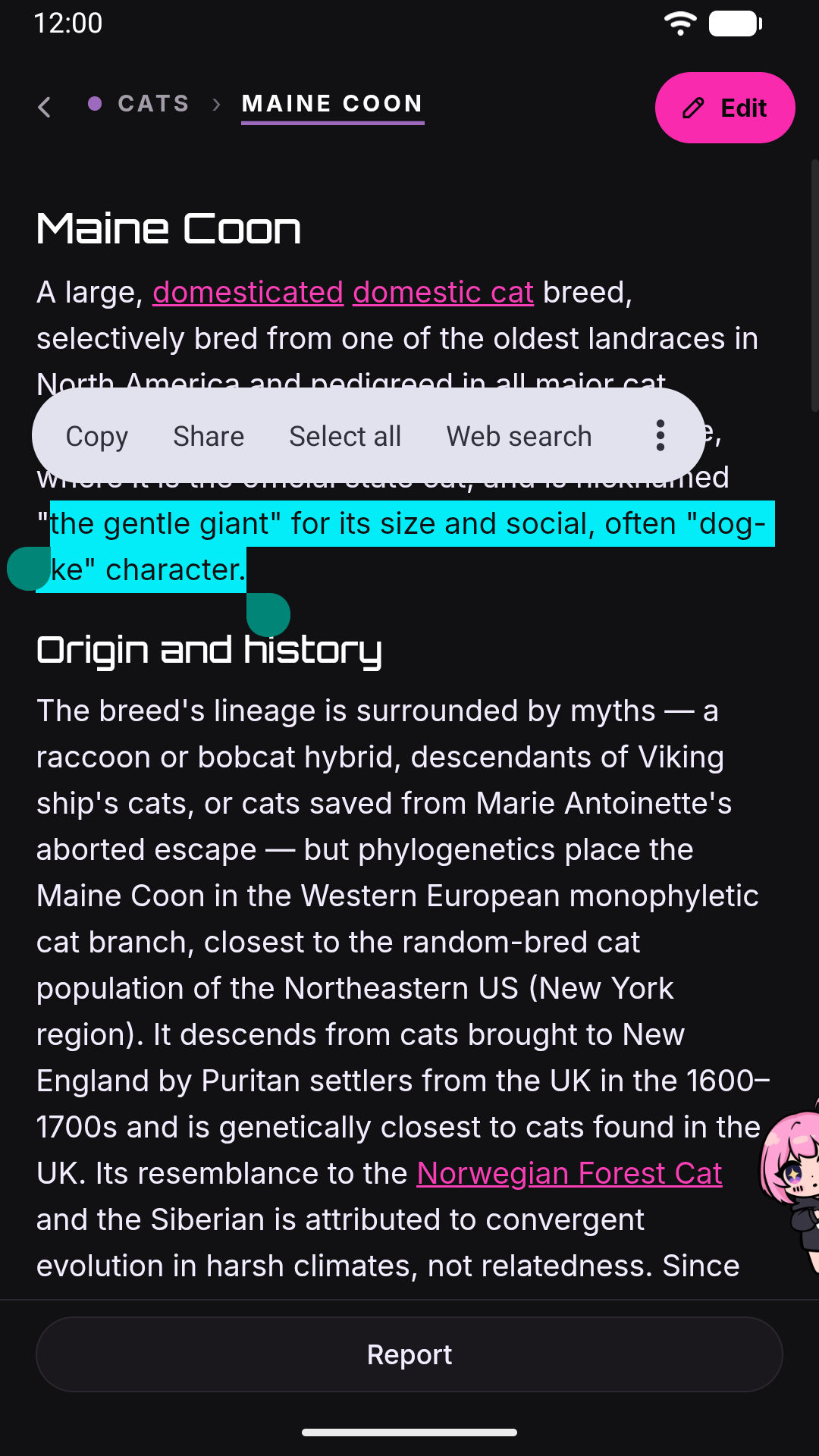
- Select a stretch of text in a page. A Report bar appears at the bottom.
- Tap it, and write what is wrong in your own words.
- Confirm. Two things happen at once: an audit file is written next to the notebook’s pages, anchored to the exact passage, and you land in that notebook’s chat with the message already sent.
So a report is not filed and forgotten — it starts a conversation, and Jenny answers there, where she has the files and the wiki skill. The audit file is the durable half: it survives the conversation, the linter checks it, and it is what lets her mark the thing as done afterwards.
If the selected text can’t be found exactly once in the page’s source — because it spans formatting, or because that phrase appears twice — you are told, rather than the comment being anchored to a guess.
Audits carry no priority. There used to be a four-level severity picker, and it was removed: grading your own complaint is a triage step, and triage is something a team does. Jenny works them oldest first.
There is no list of open reports in the app. Each one has a conversation you can scroll back to, and processing them is Jenny’s job, not a screen.
Privacy notes
Section titled “Privacy notes”- The wiki only shows a small, fixed set of page metadata to the UI: title, type, entity type, tags, and created/updated dates. Anything else in a page’s frontmatter — including source URLs and provenance notes Jenny records internally — stays server-side and out of the interface, even though it’s present in the raw file — which the page’s own editor shows you in full.
- Every ingested source keeps a
summaries/folder of per-source digest pages. These are deliberately kept out of search and off the board to avoid cluttering navigation, but they are not encrypted or otherwise access-controlled — the pages are still readable if you know (or Jenny gives you) a direct link, and they still live as plain files in your workspace.
Turning it off
Section titled “Turning it off”A config key, wiki.enabled (default true), can disable the wiki backend entirely; when it’s off, wiki API calls fail. There is no toggle for this in Settings — it’s config.json-only, see Configuration reference.
With it off, the notebook list still shows what is on disk, and opening a notebook’s board reports that the wiki is switched off rather than failing silently.
See also
Section titled “See also”- Notebooks — opening a wiki as a conversation: capture, what Jenny sees, and the write boundary.
- Notebook board — the cards, drawers, reminders and proposals a notebook opens on.
- The gardener — the pass that maintains a notebook’s pages on its own.
- Tour of the WebUI — overall navigation: the home’s pages, and the workshop’s dock.
- Backup and restore — wiki content is part of your regular workspace backup.
- Phone app launcher — the app drawer, and the Apps page it lives on.