
Chat basics
This page describes the Console, the chat of the workshop: the view where everything under a turn is on show — thoughts, tool calls, the Subagents strip, the files a turn changed. The home’s Jenny page is a plainer chat (a paperclip, the text box and a send button, and one line saying what she is doing); its behavior is in the home section of the WebUI tour. Wherever a control below is one only the Console has, it says so.
The Console is where you talk to Jenny at full detail; this page covers how a message goes out, how a reply is built on screen, and what all the small pieces of a response mean.
Sending a message
Section titled “Sending a message”Type in the box at the bottom (placeholder “Ask something…”; inside a notebook it reads “Ask something about name…”, and in read-only “Ask something (read-only)…”) and either:
- Press Enter to send.
- Press Shift+Enter to insert a line break without sending.
- Tap the send (arrow) button — it stays disabled until there is text in the box; as soon as you type something, the New chat and Attach buttons hide to make room for it.
Around the box sit the Console’s other controls:
- At the left of the box, the grid button opens the app drawer as a sheet over the chat.
- Inside the box, before you type: New chat, which asks for confirmation and then sends
/new(see Slash commands), and the paperclip for attachments. - In the row above the box, three chips: the scope chip (✿ and her name, or the notebook you are in), which switches conversation — see Notebooks; the Writes / Read-only switch, which decides whether the message you are about to send may change anything on the device — see Notebooks; and Commands, the list of slash commands this conversation accepts, one tap each.
If you have a hardware keyboard (for example on a Unihertz Titan-style device), you don’t have to tap the input first: typing any single printable character while the Console is active moves focus into the message box automatically (“type-ahead focus”). This does not trigger on Enter, Escape, arrow keys, spacebar, key combinations with a modifier held down, or while another input/textarea/select/dialog already has focus.
At the top of the chat there is an identity row, “✿” and her name (“Jenny” unless you renamed her) with a small status dot next to it — this scrolls away with the rest of the conversation, it is not a fixed header. The dot reflects only the WebSocket link between the WebUI and the local gateway inside the app, not your internet connection in general:
| Dot | Label | Meaning |
|---|---|---|
| Gray | (none) | No connection attempt has completed yet |
| Green | online | WebUI is connected to the gateway |
| Red | offline | The socket dropped |
Reconnection is automatic and unlimited: the app retries with a growing delay starting at 3 seconds, up to a 30-second cap, and resets to an immediate retry whenever the app comes back to the foreground or the device regains network. You don’t need to do anything when you see “offline” — it typically means Android briefly suspended the app or WebView, not that you have lost internet access.
Tapping the identity row opens a “Session Info” popover with details such as the model in use, the workspace path, and whether the agent is currently running; see Tour of the WebUI for what each line means.
There is no stop button in the Console
Section titled “There is no stop button in the Console”The Console has no dedicated stop/cancel button (in the home, the send button turns into Stop while a turn runs and sends /stop for you). To interrupt a turn that is in progress here, pick /stop from the Commands chip, or send it as a chat message. /stop is processed with priority even while the agent is mid-turn — it doesn’t wait in line behind whatever the model is doing — and it always ends the turn cleanly (you’ll see a short reply saying it stopped, or that there was nothing to stop). Mini-mes (subagents) already working in the background keep going — stop them from their own bubbles, or with /stop all. See Slash commands for the rest of the command list.
Anatomy of a response
Section titled “Anatomy of a response”A reply is built incrementally, not delivered all at once:
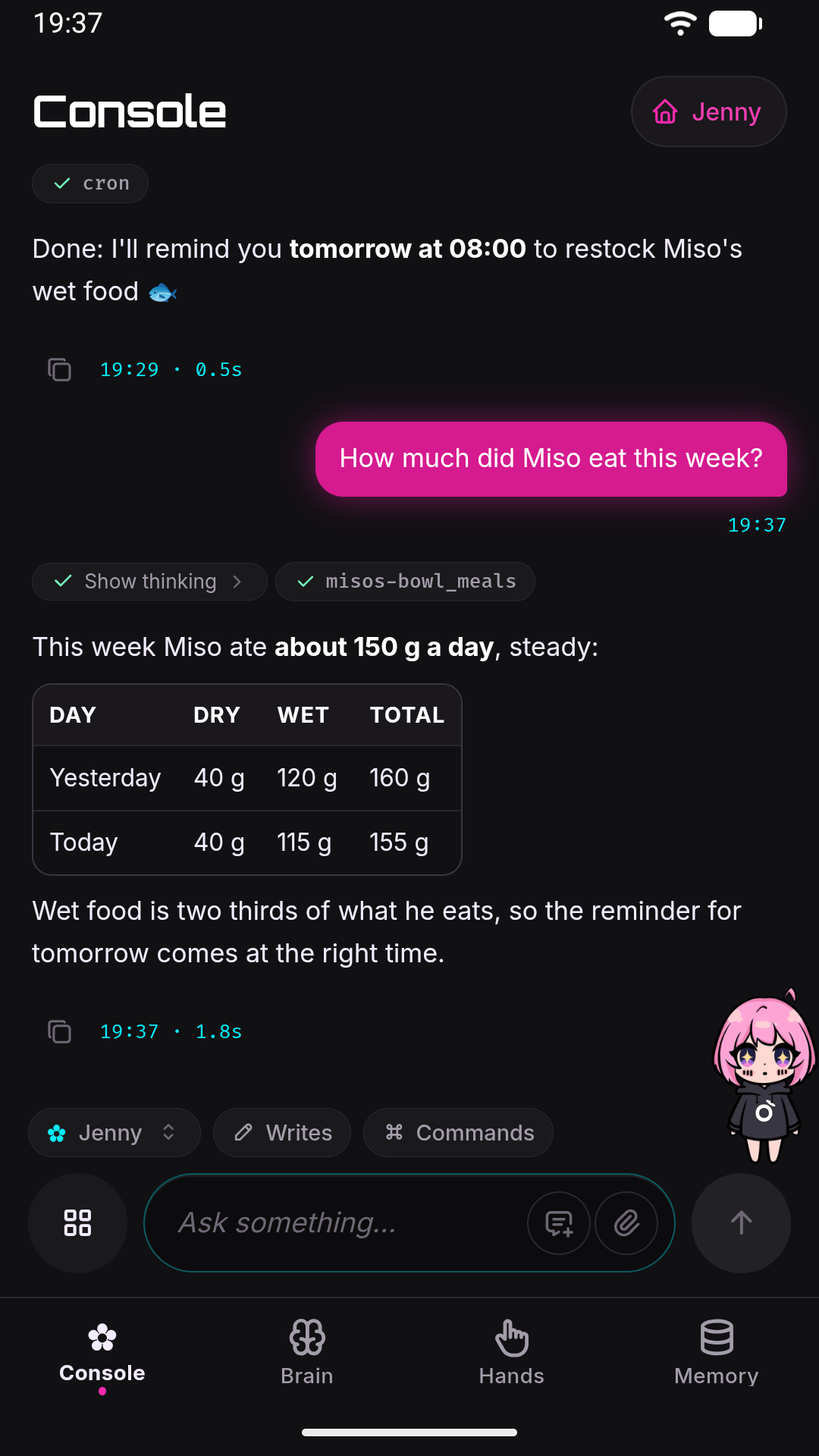
- Streaming text. The response text is re-rendered as markdown as it arrives.
- Tool pills. When the agent uses a tool, a small pill appears with the tool’s name and a spinner; the spinner turns into a checkmark or an X depending on whether the call succeeded. Tap a pill to expand it and see the tool’s result.
- “Show thinking” block. If the model produces reasoning, it appears above the reply text as a collapsible block with a brain icon and the label “Show thinking”. A few things are worth knowing about it:
- It is always collapsed by default — expand it by tapping its header.
- Whether it shows up at all depends entirely on the model, not on a switch you flip: some models (reasoning-oriented ones) return reasoning natively and the block always appears; ordinary models never produce one. Setting “Reasoning Effort” (in the workshop, Brain → Parameters) can request more or less thinking from a model that supports it, but it cannot make a non-reasoning model show this block — see Settings.
- The block’s content is rendered like a reply: markdown, math and Mermaid diagrams included.
- In a turn that goes through several phases (for example: reasoning → tool call → more reasoning → final answer), the block collects every reasoning segment of the turn, one after the other, joined the same way the history joins them — so reloading the app does not change what you read.
- Reasoning is never shown on Telegram — it only ever appears in the WebUI, by design.
- It is controlled by the config key
websocket.showReasoning(defaulttrue), which has no toggle in the home’s Settings or in the workshop — you can only change it by editingconfig.json. Turning it off doesn’t just hide the block: it stops the reasoning from being recorded in history at all, so there is nothing to look back at later. See Configuration reference.
- Final latency and Copy. Once a turn completes, the response time in seconds is shown under the bubble, next to a Copy button that copies the reply’s text. A turn made only of tool calls has nothing to copy and gets no button.
- “Agent running” banner. While a turn of the conversation runs — an ordinary message, a turn started from Telegram, or a long-running goal (see Scheduling and proactivity) — a banner reading “Agent running” appears with a live timer counting seconds.
The Subagents panel
Section titled “The Subagents panel”Most real work is done by subagents rather than by the agent you’re typing to (see Scheduling and proactivity). The turn that starts one does not wait for it: Jenny tells you the job started and the turn ends, so you can keep talking; the result comes back later as a message of its own. Without something on screen, that would mean minutes of silence with no way to tell a working job from a stuck one. The Subagents panel is that something: a strip in the workshop, titled Mini-mes, that appears just above the message box whenever background work exists. The home shows the short version — a bubble in the thread for the conversation’s mini-mes, as Jenny calls her subagents — and pressing and holding it opens the workshop.
It shows live work, not history. When nothing is running the panel isn’t collapsed, it’s absent — the header alone would cost space above the composer for no information. A card that reaches a terminal state stays for the rest of the current turn so you can see the transition, then disappears when the turn ends. Nothing from a past turn is ever shown, including after a reload.
The header reads Subagents with a count (“2 running”, or “1 running · 1 just finished”) and toggles the body open and closed. It starts closed; a subagent that goes stalled opens it by itself, since that is precisely the moment you need to see it. If you close it again, it won’t reopen for that same job.
Each running job gets a card showing:
- the label Jenny gave the job, and its state (running / stalled / done / failed / cancelled);
- the agent type (
researcher,coder,sysadmin, …); - elapsed and idle time side by side — these two answer “is it working or is it stuck?”, and they never get truncated;
- the current phase, the iteration number, and the last tool it called.
With more than one job the cards sit on a single horizontally scrolling row rather than stacking, so the panel’s height is the same for one job or five.
Stop ends a job immediately. On a terminal card the button is Relaunch instead, which starts a fresh attempt of the same work. Automatic relaunches stop after 3 attempts; relaunching by hand is never capped, and does not refill the automatic budget — the card says so when you’re at the limit.
Tapping a card (or pressing Enter on it with a keyboard) opens a detail sheet with what doesn’t fit on the card: the full task text, the attempt number, the phase and iteration, the stop reason, technical details, the outcome — and a live Activity stream of the steps as they happen. The stream labels its own health: live, paused, frozen (“this view stopped receiving updates”), or offline (“reconnecting — the stream resumes on its own”), so a stream that has gone quiet is never mistaken for a job that has gone quiet.
When a subagent finishes, a collapsible “What it actually did” block is appended in the chat under the reply. It’s collapsed by default and fetches the stored step-by-step digest only when you open it — so the detail is there if you want to audit the work, and costs nothing if you don’t.
Updates arrive by push as the job changes state; while something is running the panel additionally polls every 5 seconds, and that polling stops while the app is in the background.
“N files modified”
Section titled ““N files modified””When the agent writes or edits files in your workspace during a turn (using its file-writing tools), the reply bubble gets a collapsible pill under it, closed by default, labeled “N files modified” with a badge showing the number of distinct files touched. Expand it to see, for each file:
- The path, relative to the workspace.
- Green
+N/ red−Nline counts (lines added/removed), computed by comparing a snapshot of the file before and after the turn. Multiple edits to the same file within one turn are summed.
A few honest caveats:
- If a file is binary, unreadable, or larger than 2 MB, no line-count numbers are shown for it at all (no
+N/−Nbadge) — the file still appears in the list, just without any diff indicator next to its name. - Tapping a file jumps to the Memory drawer and opens it in the file editor there (the same one as The real files); you can edit and save it from there.
- The pill is not just a live-session thing: it is persisted in chat history, so it reappears exactly as it was after you close and reopen the app.
Clickable file paths in replies
Section titled “Clickable file paths in replies”Separately from the “files modified” pill, Jenny turns file-path-looking text inside a reply into clickable links. A string only becomes a link if it looks like a relative path with a directory prefix and a file extension — for example jenny/foo.py or ./notes.md work, but a bare config.json or an absolute path like /data/.../file.py does not.
Tapping such a link opens a read-only inline preview attached to that message: file path, detected language, size, and syntax-highlighted content with line numbers, plus an “Open in editor” link that jumps to the Memory drawer (The real files) with the file loaded there for editing. Tapping the path again (or the close button) closes the preview.
The preview has a hardcoded cap: it reads at most 384 KB of the file. If the file is bigger, the content is silently truncated — there is no warning shown in the preview itself, even though the size shown in the header is the file’s real, full size. Binary files can’t be previewed this way at all; the preview shows “Failed to load” instead (the same message is used for a few different underlying errors, including “file not found” and “outside workspace”).
Rendering
Section titled “Rendering”Assistant replies are rendered as GitHub-flavored markdown (tables, links, inline images, single newlines becoming line breaks) and sanitized before being inserted into the page. A few specifics:
- Code blocks get a header with the detected language and a “Copy” button that turns into “Copied!” for a couple of seconds after you tap it.
- Math (KaTeX) is supported with the delimiters
$$...$$,\(...\), and\[...\]. A single$...$is deliberately not math in chat, where “it costs $5, maybe $10” would otherwise turn into a formula; it is on a wiki page. Math appears only in the final render, once the stream has finished (or when replaying history). While a reply is still streaming, you’ll see the raw$$...$$source instead of rendered math. - Inline video (
.mp4,.mov,.webm) plays inline in the chat. - Mermaid diagrams are drawn: a
```mermaidcode block becomes the diagram, in the chat as on a wiki page. - Your own messages are never rendered as markdown. What you type is shown back to you as plain text, even if it contains markdown syntax.
- All of the rendering libraries are bundled with the app and work fully offline.
Scrolling
Section titled “Scrolling”Chat uses a “sticky bottom” behavior, similar to WhatsApp or Telegram: as long as you’re within about 60 pixels of the bottom of the chat, new streamed content keeps the view pinned to the bottom automatically. As soon as you scroll up to read something older, it detaches — new content keeps arriving in the background without pulling your view down. On a device with a capacitive scroll wheel, a single flick upward detaches immediately, even if you were already close to the bottom.
While detached, a floating round button (“Jump to bottom”) appears with a badge counting how many new messages have completed since you scrolled away; tapping it jumps back down and clears the badge. Sending a message of your own, or hitting an error, always scrolls you back to the bottom regardless of where you were.
Scrolling to the very top of the chat automatically loads older history (infinite scroll upward). When the conversation on screen is too short to scroll — right after /new, for instance — a Show the previous conversation button at the top does the same.
Common errors
Section titled “Common errors”- “WebSocket not connected. Waiting for reconnection…” — appears if you try to send a message while the socket is down. Wait for the status dot to turn green, or just try again shortly; reconnection is automatic.
- A rejected message or attachment — when the gateway refuses what you sent (too many images, a file over its size cap, a payload that arrived damaged, an empty message) the chat shows a plain sentence in your language, such as “Too many images in one message”, and the message counts as not sent: your text goes back into the box. A refusal the app has no wording for reads “Something went wrong” with the code in brackets. See Files and attachments for the limits.
- A provider failure — comes back as ordinary text in the chat rather than as an error line.
Related pages
Section titled “Related pages”- Tour of the WebUI — the Session Info popover, the dock, and how the Console fits into the rest of the app, and the home’s plainer chat.
- Scheduling and proactivity — why delegation is the normal path, the six subagent types, and what Jenny can do to a running subagent from her side.
- Files and attachments — sending images/files, attachment limits, and what the agent can actually read from them.
- Slash commands — the command list, including
/stopand/new, which commands work where, and the workshop’s Commands chip that shows the ones this conversation can use. - Memory and Dream — the difference between what stays on screen and what the model actually remembers.
- Settings and Configuration reference — where “Reasoning effort” and
websocket.showReasoninglive.