Plans
Some jobs in a notebook are too big for one answer: turn my notes on the 30 plants into one page each, with sources, reorganise the whole notebook by season. For those, ask for a plan. Jenny reads the notebook and proposes a list of steps, and nothing changes until you approve it. Then the steps run one at a time, each one handled by her helpers. You can pause, stop, or put the notebook back as it was before the plan.
The difference from asking in the chat: in a plan, the app drives the work, not the model. The app opens each step, waits for Jenny to close it, photographs the notebook, and only then opens the next one. A step can’t be skipped by accident, and a step the app restarted in the middle of is done again.
Plans exist only in a notebook’s chat, in the home.
Asking for a plan
Section titled “Asking for a plan”In a notebook’s chat, the first thing in the field you write in is the Plan button. Tap it. It lights up, the field asks What do you want to plan?, and a line above it says Jenny drafts a plan and touches nothing until you approve. Write the job in your own words and send it.
That starts the planning. Until Jenny proposes, every turn of that chat is read-only:
- She reads the notebook first: its map, its pages, the list of things it still doesn’t know. She can’t propose a plan for a notebook she hasn’t looked at; the app refuses it.
- She may ask you up to three questions, all in one message, each with the choice she will make if you don’t answer (if you don’t tell me: I keep it). Your answer is still part of the planning.
- She doesn’t search the web yet. The planning decides what has to be looked up, and the plan’s research steps do the searching. That way a page read on the web can’t influence what the plan is allowed to do.
- She proposes the plan.
To give up, tap Cancel the plan or tap the Plan button again. This also stops whatever the planning had started. /stop and /new end it too, and so do 12 hours without a message.
The proposed plan
Section titled “The proposed plan”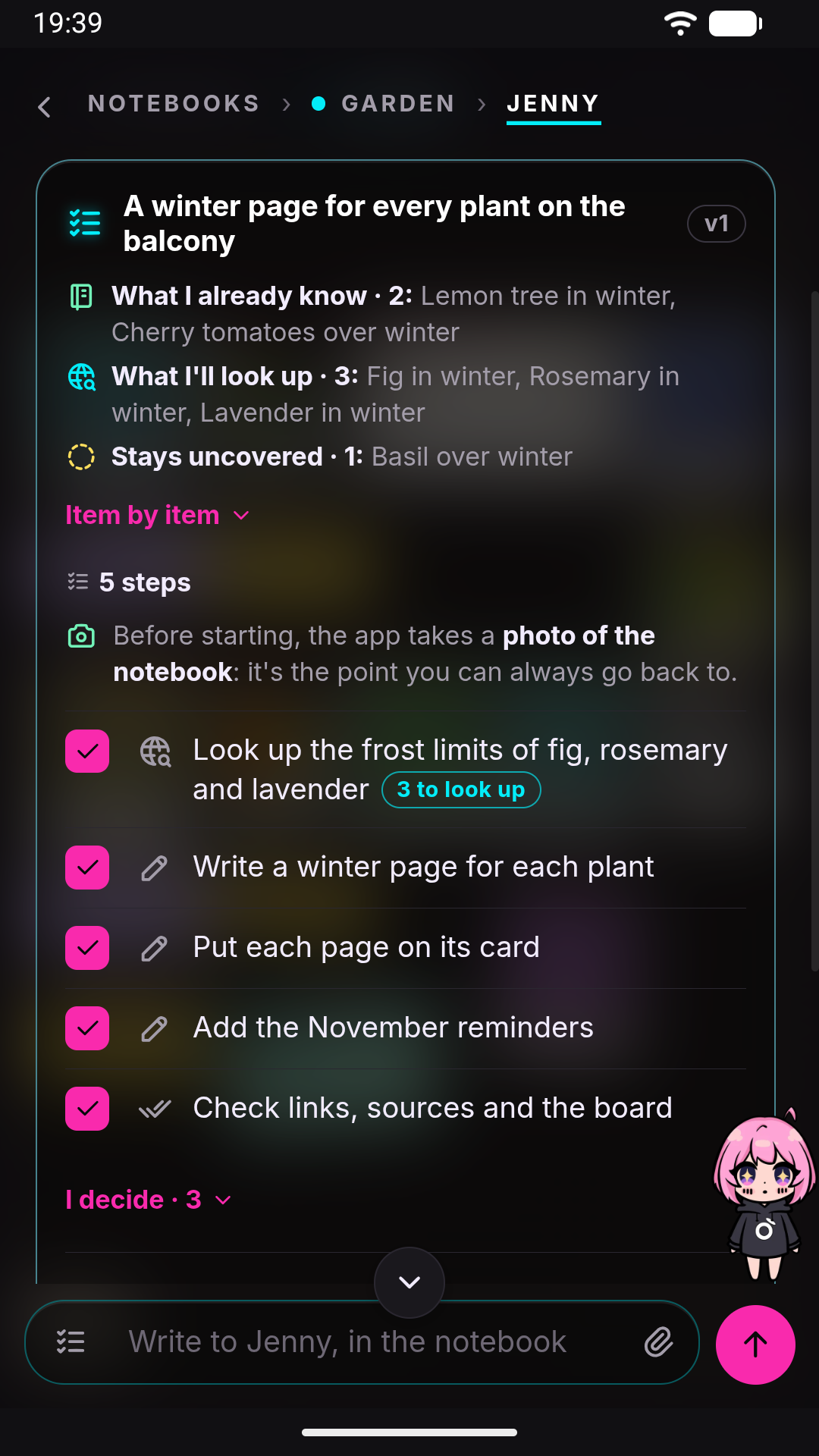
The plan arrives as a card in the chat:
- What it covers: What I already know, What I’ll look up, and Stays uncovered, each with a count. Item by item opens the lists.
- The steps, from 2 to 12, each a one-line title in your words, with tags such as new, moved, changed or trash where they help. Every step has a checkbox. Untick one and Jenny won’t do it.
- I decide: the small choices Jenny made herself. Approving the plan approves them too.
- A line reminding you that before starting, the app takes a photo of the notebook: the point you can always go back to.
Under it are three buttons:
- Approve (or Approve the N steps when you took some out) starts the plan.
- Revise lets you write what to change; Jenny comes back with the next version of the plan.
- Drop it throws it away.
The full plan opens every step in detail, read-only. A notebook has one open plan at a time: a new proposal replaces the one before.
While it runs
Section titled “While it runs”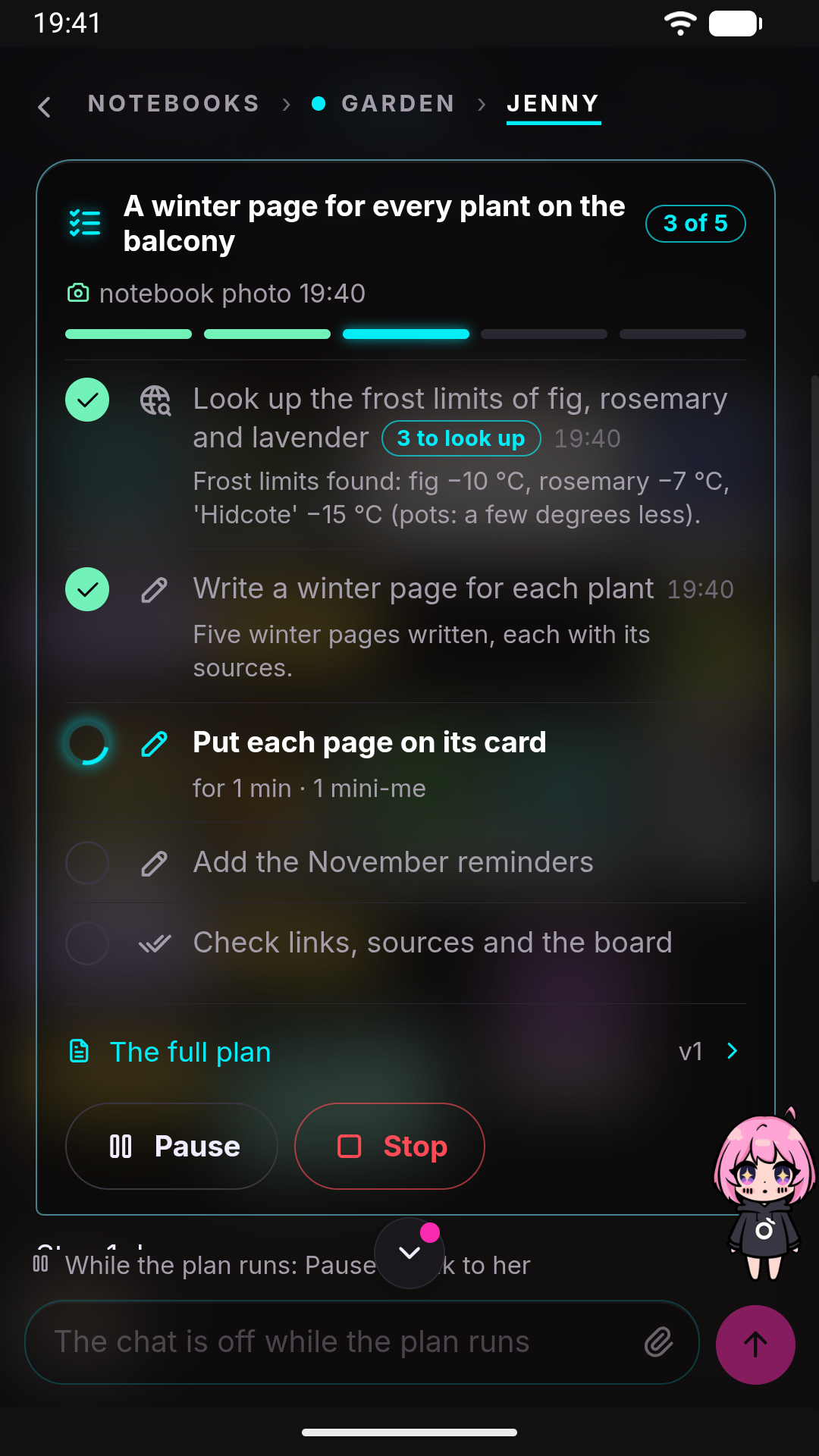
When you approve, the app photographs the notebook and opens the first step. The card shows how far along it is (3 of 8), what the current step is doing and for how long, how many helpers it has at work, and the time of the last photo. A finished step shows its time and Jenny’s note. Tap it to see what it wrote, changed and removed.
The notebook is read-only while a plan runs. From the board, the reader and every other chat, a change is refused with Read-only while the plan runs, and a notebook with an open plan can’t be renamed or deleted. The chat is off too (While the plan runs: Pause to talk to her), so the steps aren’t interrupted halfway.
- Pause stops at the end of the current step (I’ll stop at the end of this step). Once paused, you can talk to Jenny, read-only, and Resume picks up from the next step.
- Stop asks what to do with the work so far:
- Continue: nothing happens.
- Stop and keep what it did: the plan closes halfway, and the files stay as they are.
- Stop and go back to before the plan: the notebook goes back to the photo taken at approval.
/stop during a plan is the same as Stop and keep what it did.
If the app restarts in the middle of a step, the plan comes back paused at that step. Resume does that step again from the beginning.
When it needs you
Section titled “When it needs you”A plan stops and waits in two cases, and it never goes on alone:
- A change to approve. A helper that read the web can’t change by itself the files Jenny loads on every turn. Its change waits as a draft (Jenny wants to change {file}: look at the change, then install or discard it). Tap Install or Discard, and the plan picks up again by itself as soon as you decide.
- A question. When Jenny can’t decide something, or a step stops twice without finishing, the card shows the question with an Answer field. A normal message in the chat counts as the answer too.
How it ends
Section titled “How it ends”The last step is always an automatic check done by the app: links that lead nowhere, sources, the board, empty pages, facts that went missing along the way. If it finds problems, Jenny gets at most two rounds to repair them. What the plan could not find is listed in raw/notes/open-gaps.md, and the card tells you how many things are left to look up.
The finished card shows how long it took and what changed: new pages, changed, removed, research. See changes opens the details, and Go back to before the plan is still there.
Going back
Section titled “Going back”Going back is done by the app, not by Jenny, file by file, to the photo taken at approval. Before it starts, you see the list of what will change. Checkboxes let you keep some groups of files as they are now.
- A file you changed after the plan is left as it is, and the list names it.
- The notebook’s journal is never rolled back. What you said in the chat stays said.
- Drafts the plan left waiting are discarded.
After going back, you can Redo the plan, Revise it, or Undo the rollback.
A closed plan can be rolled back while the app keeps it: the five most recent per notebook, for up to 30 days.
See also
Section titled “See also”- Notebooks and Notebook board: what a plan works on.
- Helpers: stop, undo, continue: the helpers that do each step.
- Slash commands:
/stopand/newduring a planning or a plan.